
Find slowdowns and free up space.
CoreRobin brings CPU, memory, storage, network, and running apps into one clear view. When your computer slows down, storage runs low, or network activity spikes, it helps you find the cause. Your data stays on your device, and nothing is stopped or deleted without your confirmation.
Open it and see the conclusion first.
See whether the computer is doing well, what deserves attention, and what to do next—right up front.
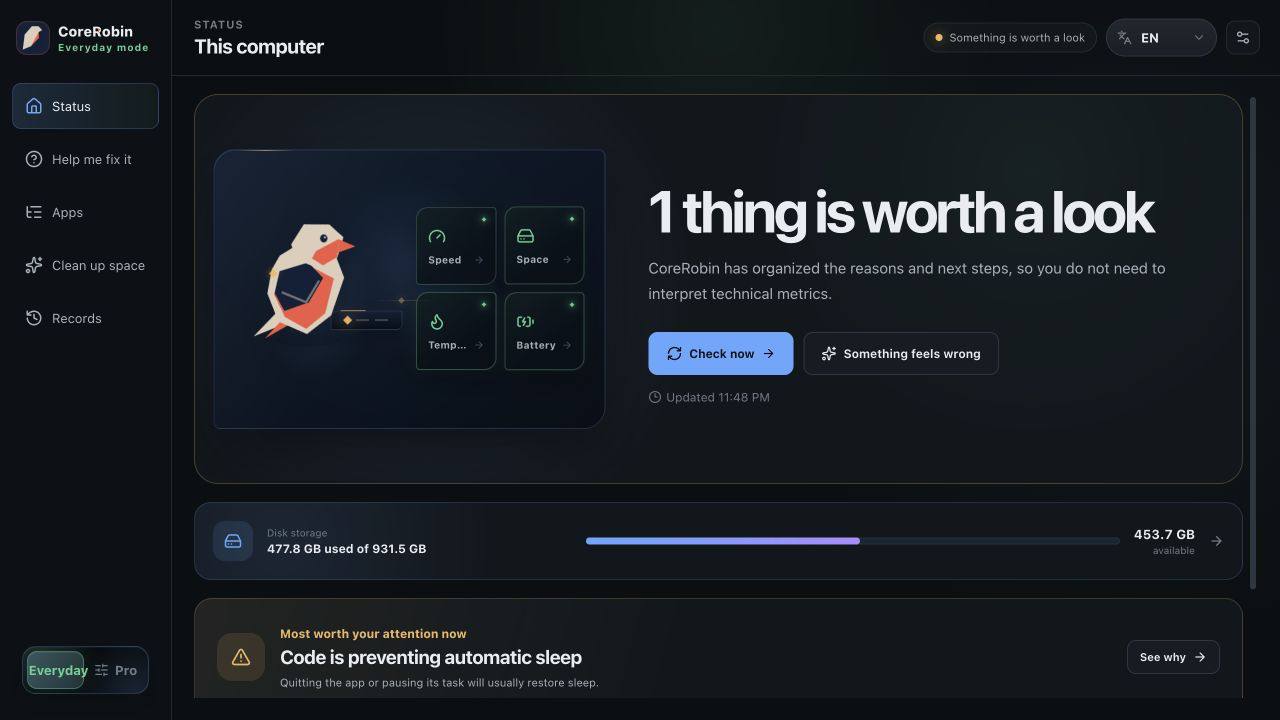
Know how your computer is doing without decoding every number.
Start with one stable conclusion and the most useful next step. Open Pro details only when you need a specific process or connection. Brief spikes do not become incidents, and CoreRobin tells you when recovery is stable.
Check the overall status
Instead of making you decode a wall of numbers, CoreRobin tells you when something deserves attention.
Find the busiest app
Recent trends and app activity help explain the slowdown without turning every brief spike into an alarm.
Inspect or take action
Open the details first. If you stop a process or delete a file, the app asks again before anything changes.
Keep it simple or go deeper when you need to.
Everyday mode leads with a clear conclusion and next step. Professional mode opens resource trends, processes, and network details. The switch stays at the bottom of the shared sidebar.
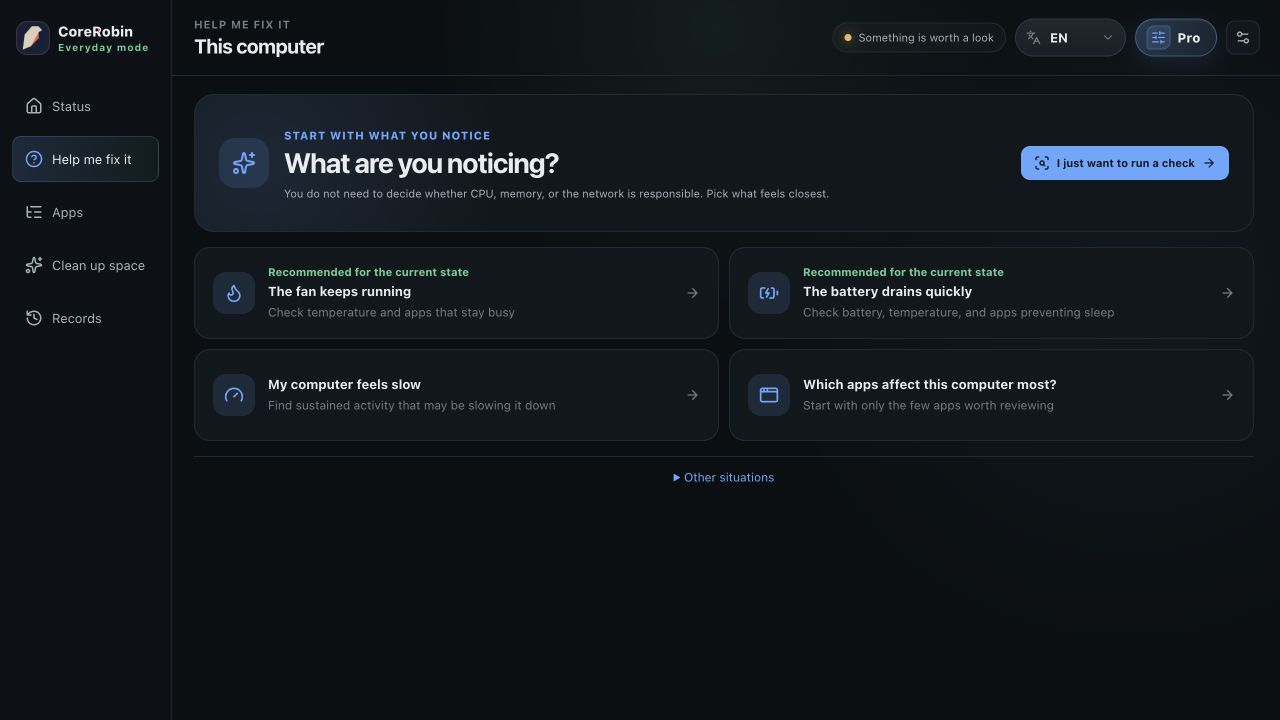
Understand the problem, then take the next step.
Ideal for a quick daily check. When the computer slows down, runs hot, or needs space, start from a familiar problem instead of decoding CPU, memory, and process terminology.
Go deeper into trends, processes, and network activity.
When you need the exact cause, Professional mode combines live metrics, five-minute trends, and actionable detail for sustained load or unusual traffic.
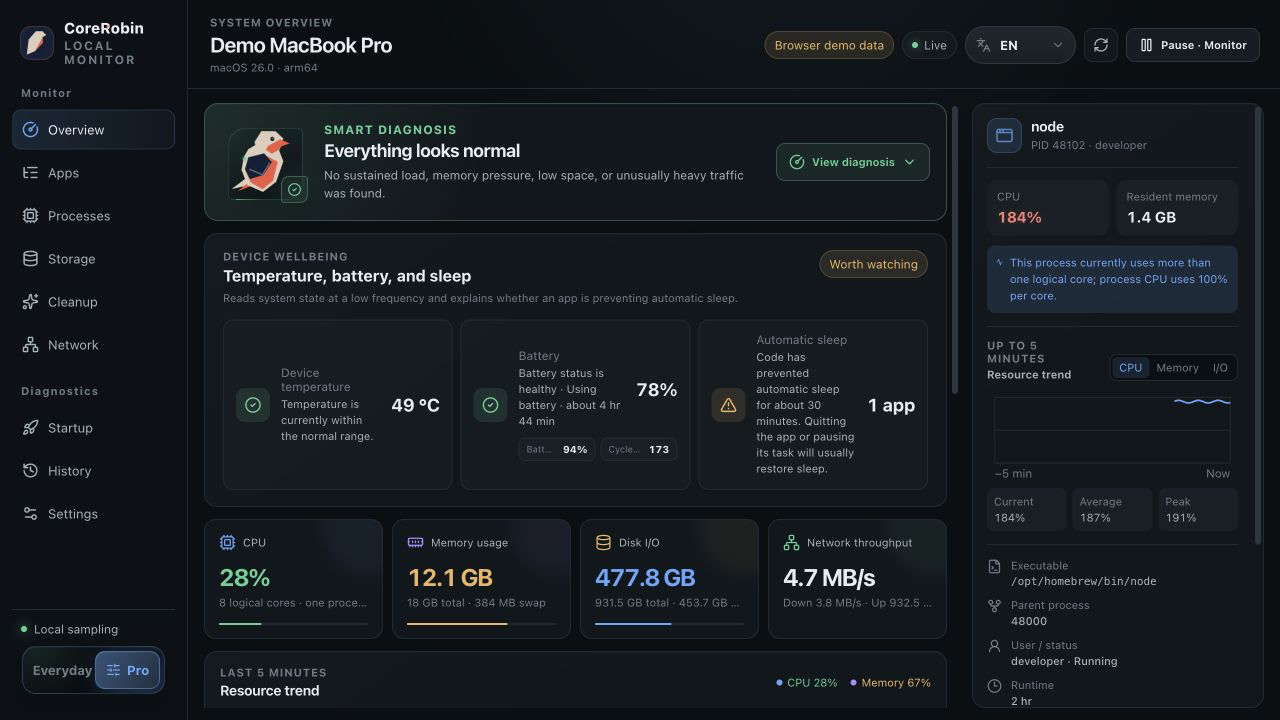
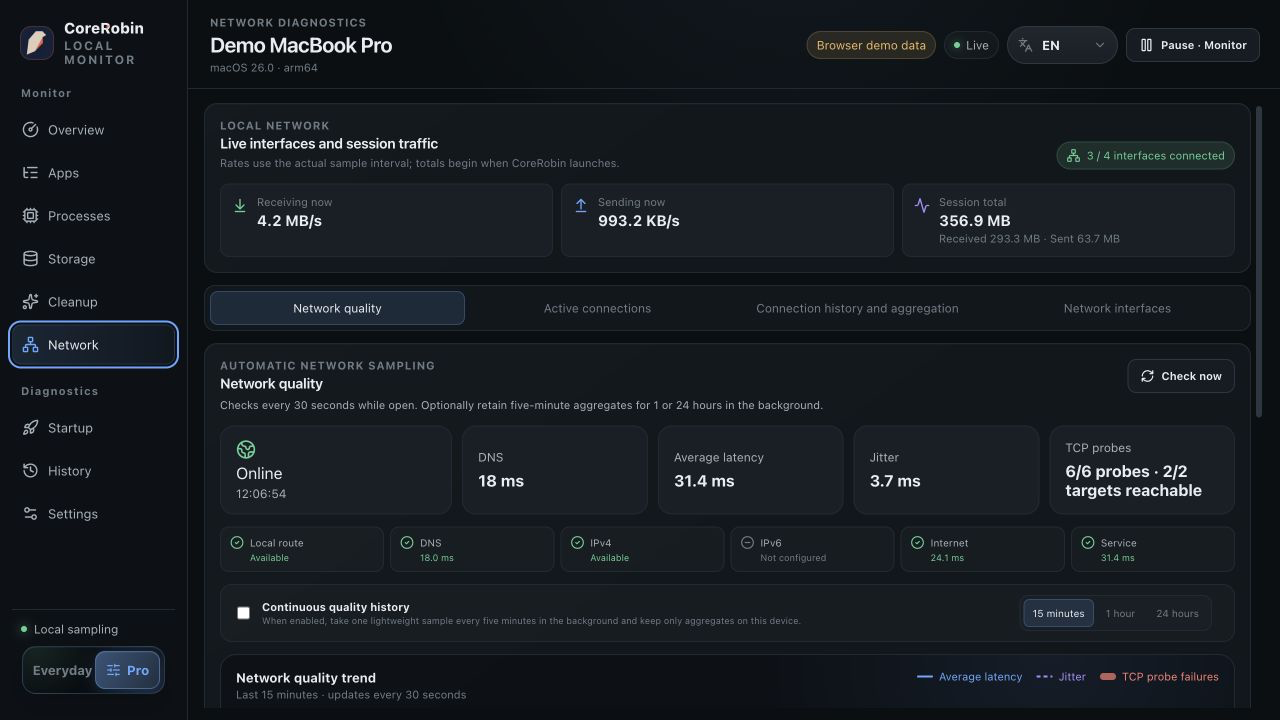
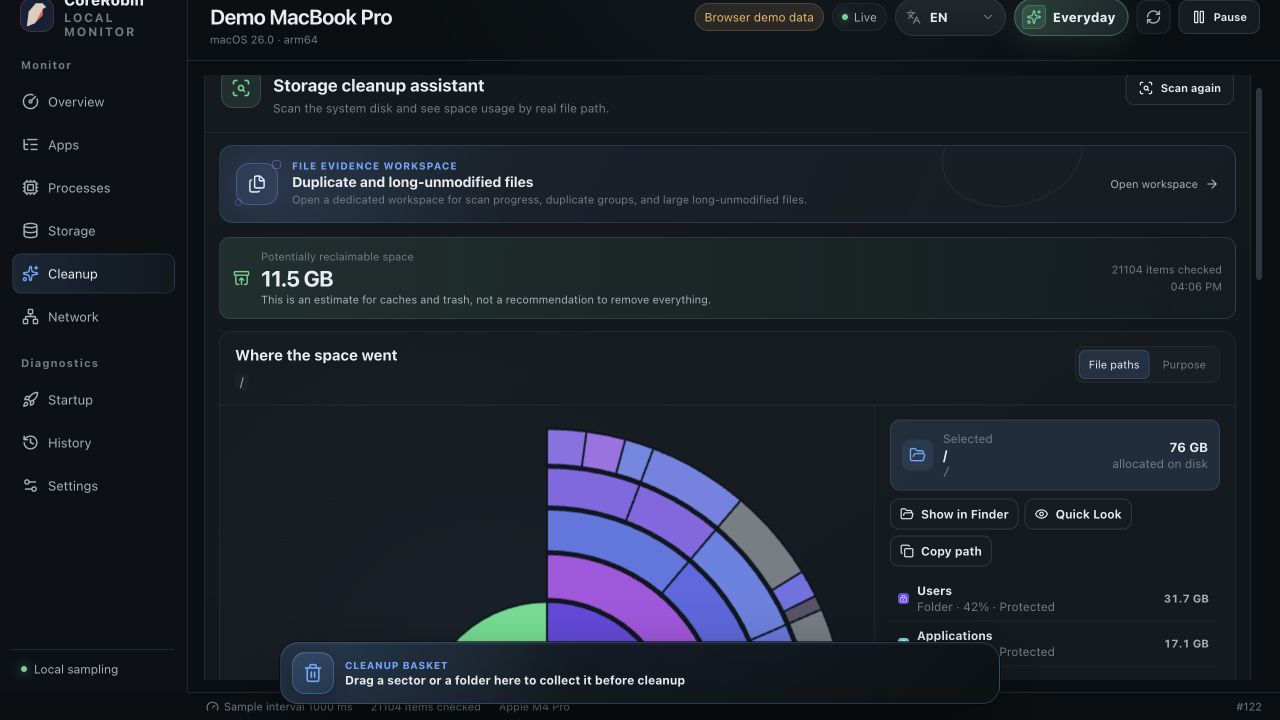
All screenshots come from the real product interface and use sanitized demo data. No device model, username, real path, or network identity is shown.
Ask Robin. See what happens next.
Connect your own local or cloud model. Ask about your computer, follow the checks, and review actions before they run.
Set up your assistant Your model. Your choice of context.Ask a question
Why is my computer slow?
Inspect the results
Device, process, network, and disk checks show their actual results.
Confirm the action
Review targets before stopping a process or moving files to Trash.
Capability center
Run cleanup, process, network, and history tools directly. Local inputs and results are not automatically sent to a model.
Go from the big picture to the cause.
Move from the overview into app, storage, or network details without jumping between separate tools.
Everyday assistant & Smart Diagnosis
Live status and five-minute trends confirm only sustained conditions, wait for stable recovery, and link every conclusion to supporting evidence.
Apps
Apps is a top-level entry in both modes. It shows localized app names and real icons, reuses a cached inventory, and opens the Complete Uninstall Assistant for path-by-path review on macOS.
Cleanup
Before the first scan, Cleanup shows its read-only scope and a clear start button. Moving to Trash remains the recoverable default, with a separate confirmation for direct deletion.
Network
Probe multiple targets automatically, separate local route, DNS, IPv4, IPv6, internet, and service health, and optionally keep local 1-hour or 24-hour aggregates alongside the live 15-minute trend.
Startup items
See which apps start with your computer. Supported third-party items can be disabled and restored later.
Incident history
Keep the start, duration, likely cause, and recovery of a condition in one record. History stays on your device and can be disabled or cleared anytime.
Menu bar & Robin
Keep one shared health conclusion after the main window closes. Launch quietly at sign-in, check the menu bar, or keep Robin on the desktop.
10 interface languages
Use CoreRobin in Simplified Chinese, Traditional Chinese, English, Japanese, German, French, Spanish, Brazilian Portuguese, Korean, or Russian.
Updates, privacy, and removable storage
Review release notes and install signed updates in the app. The privacy center shows size, item count, last update, and retention for every local dataset with per-category clearing, while removable volumes can be safely ejected from Storage.
See what is taking up space at a glance.
After a scan, files and folders are sized by the space they actually use. The largest sectors show you where to look first.
- 01Larger sectors use more spaceColors separate categories; size reflects disk usage.
- 02Click through to find large filesOpen folders from the map instead of searching through long lists.
- 03Collect first, review before deletingCollecting changes nothing. Deletion happens only after you review the name, location, and size.
Processes are stopped and files are deleted only when you confirm.
CoreRobin never stops processes or deletes files automatically. If a process has exited or a file has changed since the scan, the action stops.
- ✓Local monitoring. AI sharing you control.
- ✓Critical system processes and CoreRobin itself cannot be stopped by mistake
- ✓Your home folder, links, special files, and content on other disks are protected
Understand the problem, then take the next step.
Find slowdowns and see what is taking up space.
Start here. It only takes a few minutes.
The guide explains what each page is for and what to watch for when stopping processes or cleaning files.
Open the full guide→